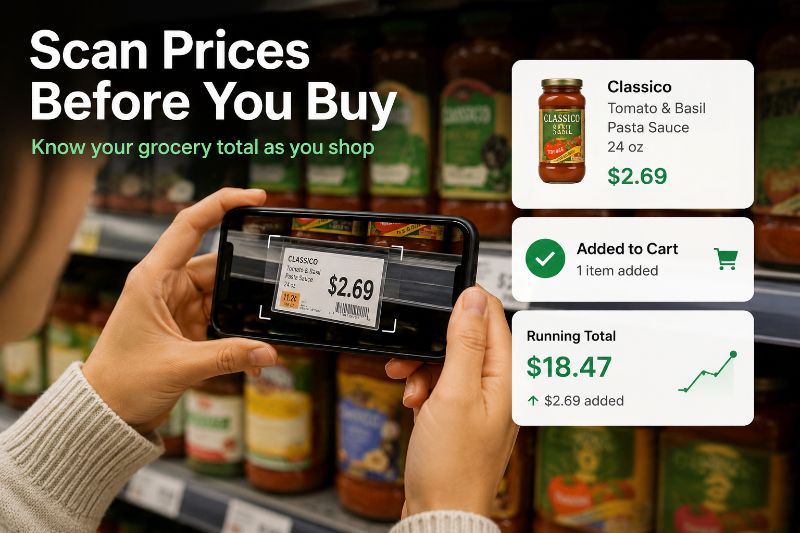
How to Scan Shelf Price Tags While Shopping
Learn how to scan shelf price tags while shopping to track grocery spending, stay on budget, compare products, and avoid surprises at checkout.
How to Scan Shelf Price Tags While Shopping
Most grocery shoppers don't realize how much they've spent until they're already at the register.
By then, it's too late to put anything back without holding up the line.
Scanning shelf price tags while you shop changes that. Instead of guessing, you know — aisle by aisle, item by item — exactly where your money is going before you ever reach checkout.
Shelf price tags are the small labels attached to store shelves directly below each product.
They show the item's price, unit price, product name, and sometimes a barcode or SKU number.
Most shoppers glance at them briefly and move on. But those tags contain everything you need to track your spending accurately — if you have a way to capture and record them quickly.
The average grocery trip involves 20 to 30 items. Trying to remember even half of those prices while navigating a busy store is unrealistic.
Here's what usually happens instead:
- You round prices down in your head to feel better about the total
- You forget the expensive items and only remember the cheap ones
- You tell yourself you'll do the math later — and never do
- You reach checkout and spend the next 60 seconds hoping the total is reasonable
Scanning shelf tags removes all of that guesswork. The price goes in the moment you see it, your running total updates automatically, and you always know where you stand.
You don't need any special equipment. Just your Android phone and an app that's built for this.
Step 1 — Open your shelf price scanner app before you enter the store
Don't wait until you're already in the produce section. Open the app in the parking lot or just inside the entrance so you're ready to log the first item immediately.
Step 2 — Find the shelf tag for the item you're considering
Before putting anything in your cart, look at the tag on the shelf below it. You're looking for the item price — not the unit price, unless you're comparing two similar products.
Step 3 — Capture the price
Point your phone at the tag or manually enter the price depending on how your app works. The best apps make this fast — a second or two per item, not ten.
Step 4 — Confirm the item is added and check your running total
After logging, glance at your total. This is the habit that changes everything. Seeing the number go up in real time is what keeps spending in check.
Step 5 — Repeat throughout the store
Do this for every item before it goes in the cart. If you decide not to buy something, remove it from the list. Your total should always reflect exactly what's in your cart.
It happens. Tags fall off, prices get covered, or the shelf is just a mess.
In those cases:
- Check a nearby tag — products in the same line often have consistent pricing nearby
- Use the store's app or price checkers — most large grocery chains have in-store price scanners on kiosks or in their own apps
- Ask a store associate — faster than it sounds, especially for produce or deli items
- Estimate conservatively — if you can't find the price, log a slightly higher estimate so your total doesn't come in under
The goal is accuracy, but a close estimate is always better than skipping the item entirely.
Shelf scanning on its own is useful. But it becomes genuinely powerful when every scanned price feeds directly into a live running total.
That combination gives you something most shoppers never have: a clear, real-time view of your grocery spend while you still have the ability to change it.
If you haven't set this up yet, our guide on how to maintain a running grocery total while shopping walks through exactly how to do it.
The first trip will feel slightly unfamiliar. You're adding a step you've never done before.
By the third or fourth trip, it becomes automatic — grab the item, check the tag, log the price, move on. Most shoppers report it adds less than two minutes to the total trip once it becomes a habit.
The payoff is worth it. You stop dreading checkout. You stop overspending without knowing why. And you start making real decisions about what's actually worth buying.
A lot of shoppers start by photographing shelf tags or typing prices into a notes app.
It works — for a while. But photos pile up with no totals attached, and notes become hard to scan quickly when you're in the middle of an aisle.
A dedicated shelf price scanner keeps your prices, items, and running total in one place, organized and always current. Tally Cart was built specifically for this — scan shelf prices, watch your total update in real time, and arrive at checkout knowing exactly what you'll pay.
You can see how the shelf scanning feature works on our Shelf Price Scanner page.
Do I need to scan a barcode to record a shelf price?
No. Most shelf price scanner apps let you enter the price manually from the tag, which is often faster than scanning a barcode. Some apps support both methods depending on your preference.
Does this work in any grocery store?
Yes. Shelf tags follow a standard format across most stores, so the process works the same whether you're at a large chain, a discount grocery, or a local market.
What if I add an item and then decide not to buy it?
Just remove it from your list. A good shelf price scanner app lets you delete items instantly so your running total stays accurate throughout the trip.
How long does it take to scan prices for a full grocery trip?
Most shoppers add less than two minutes to their trip once the habit is established. The first few trips may take slightly longer while you get used to the workflow.
Is shelf scanning the same as price checking with a barcode scanner?
Not exactly. Barcode scanners typically look up a product in a database to retrieve a stored price. Shelf scanning captures the actual price displayed on the shelf in your specific store — which is what you'll actually be charged at checkout.
Do I need an internet connection to use a shelf price scanner?
It depends on the app. Some require connectivity to sync data, while others work fully offline and sync later. Check the app's details to confirm what works for your shopping environment.
Can I use this method to compare store brands versus name brands?
Absolutely — that's one of the best use cases. Log both prices, see the difference in your total, and decide whether the name brand is actually worth it before it goes in the cart.
Ready to try shelf price scanning on your next trip? Explore our Shelf Price Scanner feature and see how real-time price tracking works in practice.
Pronto para controlar seus gastos com compras?
Pare de adivinhar no caixa. O TallyCart ajuda você a escanear preços de prateleira, acompanhar gastos em tempo real e manter-se dentro do orçamento.
- Acompanhe gastos enquanto compra
- Escaneie preços instantaneamente
- Armazene e organize recibos
- Mantenha-se dentro do orçamento